# Let's build a Custom Search Filter using JavaScript
A while back, I had to build a search filtering functionality for a class project I was working on which took a while to figure out so, in this article, we'll build it together. It simply filters a list of data/information. For this article, the list will be represented as todos we'll have to do, hopefully 😀.
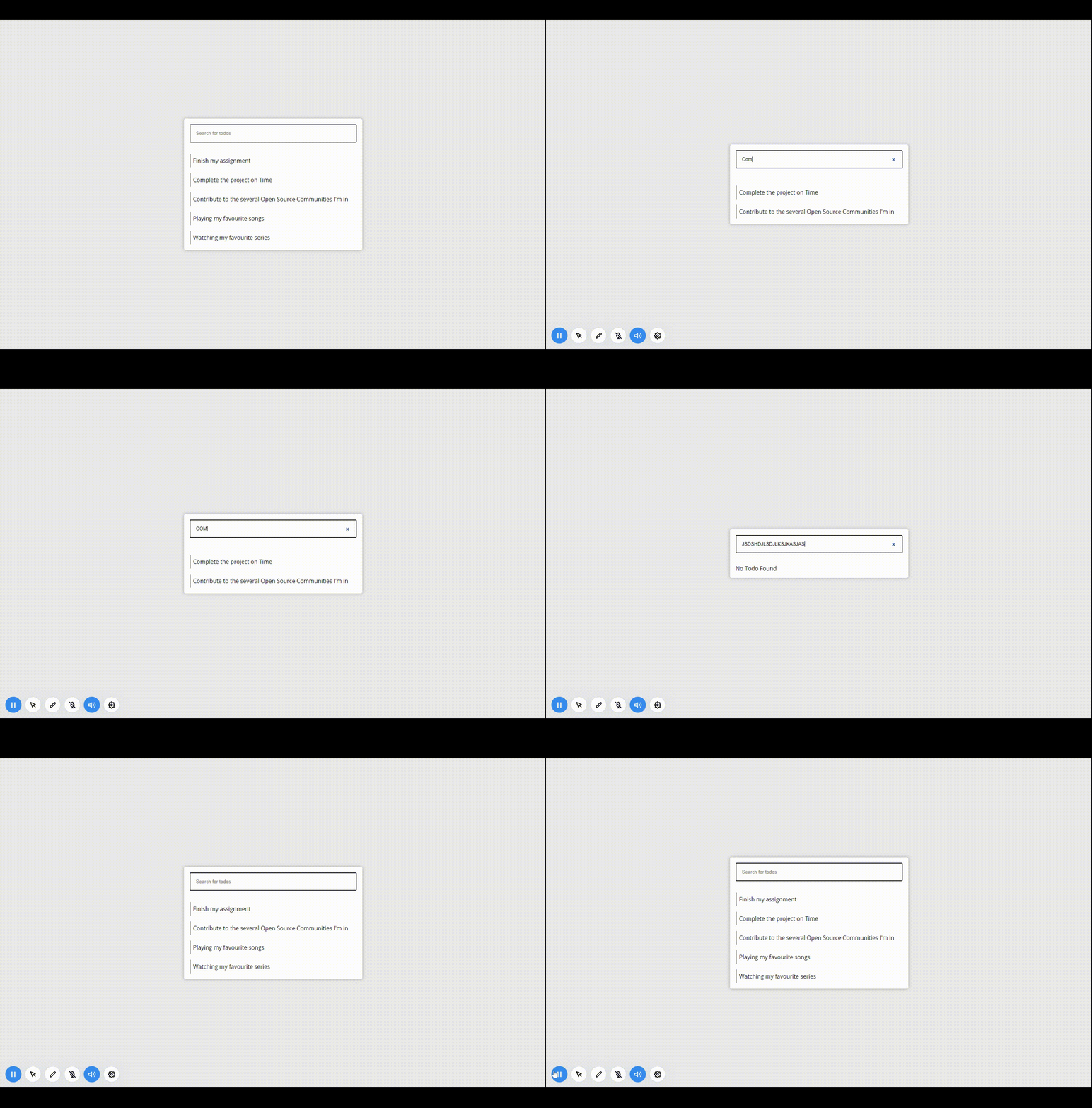
[Demo](https://jomefavourite.github.io/Filter_Functionality_Javascript/)
[Code here](https://github.com/jomefavourite/Filter_Functionality_Javascript)
### Getting Started
For us to get started we'll need to create a folder, named as anything we like but for the project seek we could name the folder **filter_functionality**. In this folder, we'll need three files which will be `index.html`, `style.css`, `main.js`.
### HTML
The HTML file is going to be basic, nothing complicated. We'll just need an input element to enter our search then an unordered list of todos.
Also, the HTML file should be linked to both the CSS file and the JS file.
```html
Filter Functionality
Finish my assignment
Complete the project on Time
Contribute to the several Open Source Communities I'm in
Playing my favourite songs
Watching my favourite series
No Todo Found
```
### CSS FIle
Also, the CSS style sheet isn't complicated, just some little styling to make things fancy 😎.
```CSS
* {
margin: 0;
padding: 0;
box-sizing: border-box;
}
body {
display: flex;
justify-content: center;
align-items: center;
height: 100vh;
font-family: 'Open Sans';
background: rgba(0, 0, 0, 0.082);
}
main {
width: 80%;
max-width: 500px;
margin: auto;
border-radius: 5px;
overflow: hidden;
padding: 1rem;
box-shadow: 0 0 10px rgba(0, 0, 0, 0.274);
background: #fff;
}
input[type='search'] {
width: 100%;
padding: 1rem;
margin-bottom: 2rem;
}
ul li {
list-style: none;
border-left: 2px solid black;
padding: 0.5rem;
}
li + li {
margin-top: 1rem;
}
#notFound {
display: none;
}
```
> Notice, `#notFound` selector has `display: none` as its declaration because we only want it visible when no todo is found. More on that in the JavaScript section.
### JavaScript
The JavaScript file is where all our main functionality will be applied, as expected 😉.
Let's go over the code snippet below and we'll work through the code step by step.
```js
const search = document.querySelector('#search');
const todos = document.querySelectorAll('ul li');
const notFound = document.querySelector('#notFound');
search.addEventListener('keyup', filterFunctionality);
```
- First thing first, we select all the elements we'll be needing from the DOM (Document Object Model). What will be selected are the input element, all the list elements and the element with the `id` of ***notFound*** as seen from __line 1 - 3.__
> `const todos = document.querySelectorAll('ul li')`
> Notice from the code above, we are selecting all the list elements which return a Nodelist object.
> A NodeList object is a list (collection) of nodes extracted from a document.
> Read more about the Nodelist Object here: [w3schools - Nodelist Object](https://www.w3schools.com/js/js_htmldom_nodelist.asp#:~:text=A%20NodeList%20is%20a%20collection, in%20the%20list%20(collection)
- The input element `search` has an event listener attached to it with the type of event as `keyup` and a callback function\listener named `filterFunctionality`
```js
function filterFunctionality(e) {
let searching = e.target.value.toLowerCase();
// Filters the todo
[...todos].forEach(todo => {
let todoContent = todo.textContent;
if (todoContent.toLowerCase().includes(searching)) {
todo.style.display = 'block';
} else {
todo.style.display = 'none';
}
});
// Displays No Todo Found
let result = [...todos].every(todo => {
return todo.style.display === 'none';
});
result === true
? (notFound.style.display = 'block')
: (notFound.style.display = 'none');
}
```
- The function `filterFunctionality` takes in a parameter `e` which is the event object and implicitly passed to the function.
> The Event Object is created once there's an event for example when a button is clicked.
> Read more about the [Event Object here]
- [w3schools - The Event Object](https://www.w3schools.com/jsref/obj_event.asp)
- [MDN - Event](https://developer.mozilla.org/en-US/docs/Web/API/Event)
- A variable is declared `searching` with the value as `e.target.value.toLowerCase()`
> `target` is a property in the event object `e`, which tells what element the event is applied to.
> `value` is also a property but on the target property, which tells the value typed in the input.
> `toLowerCase()` is a method on the `value` property. This makes the inputted values if uppercase become lowercase.
Here's where the main functionality is applied.
```js
// Filters the todo
[...todos].forEach(todo => {
let todoContent = todo.textContent;
if (todoContent.toLowerCase().includes(searching)) {
todo.style.display = 'block';
} else {
todo.style.display = 'none';
}
});
```
- Using `[...todos]` converts the Nodelist Object to an array, given us access to the `forEach()` method.
> Well, the `forEach()` method is available to the Nodelist object, but not all the array methods all available on the Nodelist Object. Then why convert it to an array you might ask, well for consistency sake.
- In the `forEach()` function, which loops over each todo item a variable `todoContent` is declared with it's value as the `todo.textContent`.
> `todo` are each item in the array which are the list -`
` elements.
> `textContent` is a property that's available to each list elements which returns the value of the lists.
- Next line is an if statement condition which checks if `todoContent.toLowerCase()` includes/has `seaching` which is what is being inputted.
> Simply the above statement can be represented like this `"Hello there!".includes("!")`
> From the representation, it evaluates to `true`.
- If the condition in the if statement is `true` at any point in time, then the list elements will be visible `display: block` - `todo.style.display = 'block'` other wise the list elements will be invisible `display: none` - `todo.style.display = 'none'`.
That's the functionality, I know right pretty easy, but I had a hard time making it work and also had to watch a [video](https://youtu.be/3NG8zy0ywIk) that gave me insight into how to implement it.
Now, what if we'll like to tell a user if what's searched in the input element isn't found. Hmm, this is going to be tricky but let's play things out.
Within the same function `filterFunction()` type in the snippet of code below.
```js
// Displays No Todo Found
let result = [...todos].every(todo => {
return todo.style.display === 'none';
});
result === true
? (notFound.style.display = 'block')
: (notFound.style.display = 'none');
```
- First line, a variable is declared `result` with its value which is to be a Boolean value (`true` or `false`).
>
[...todos].every(todo => {
    return todo.style.display === 'none';
  });
> The Nodelist object is converted to an array, giving it access to the `every` method which checks if every item (list element) in the array has a `style.display === 'none'`. If this condition is true the `every` method return `true` and if not returns `false`.
- Next off, there's a ternary operation which checks if `result` is `true`. If `true` the element `notFound` (`
...
`) will be displayed - `notFound.style.display = 'block'` else it wouldn't be displayed - `notFound.style.display = 'none'`.
> The above explanation displays the text "No Todo Found" when the search input isn't found.
[Demo](https://jomefavourite.github.io/Filter_Functionality_Javascript/)
[Code here](https://github.com/jomefavourite/Filter_Functionality_Javascript)
## Conclusion
Well, I that's all if you have any question you could comment below or leave message me on [Twitter](https://twitter.com/FavouriteJome1).
Hope the article was useful or will be useful later on. Thanks for reading.